📚 SSH Series: This is Part 1. Once you've generated your keys, continue to Part 2: Using SSH Keys with GitHub and Ubuntu Servers to learn how to use them.
What is SSH?
SSH, which stands for Secure Shell, is a cryptographic network protocol that allows you to securely connect to remote computers over an unsecured network. Think of it as a secure tunnel that encrypts all data transmitted between your local machine and a remote server.
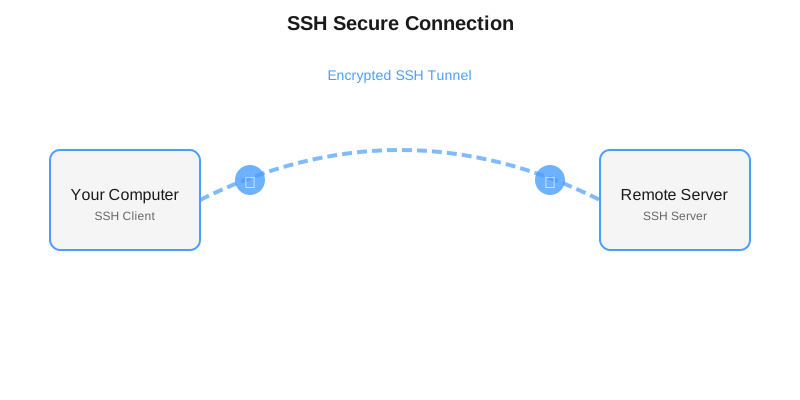
SSH creates a secure encrypted connection between your computer and a remote server
Why Use SSH?
- Security: All data is encrypted, protecting your information from eavesdroppers
- Authentication: Uses cryptographic keys instead of passwords, making it more secure
- Remote Access: Access and manage remote servers from anywhere
- File Transfer: Securely transfer files using SCP or SFTP
- Port Forwarding: Create secure tunnels for other applications
How SSH Works
SSH uses a client-server architecture. When you connect to a remote server:
- Your SSH client initiates a connection to the SSH server
- Both parties exchange encryption keys to establish a secure channel
- You authenticate using either a password or SSH key pair
- Once authenticated, you can execute commands and transfer data securely
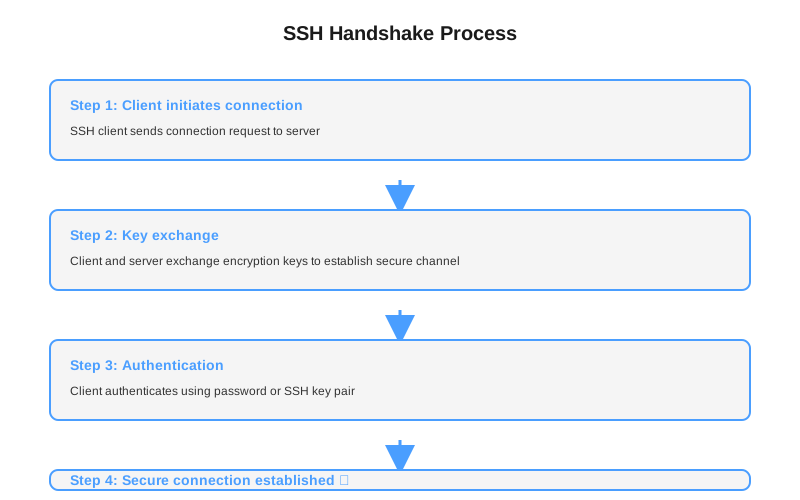
The SSH handshake process establishes a secure connection
SSH Keys: The Foundation of Secure Authentication
SSH keys are a pair of cryptographic keys used for authentication:
- Private Key: Stays on your local machine (never share this!)
- Public Key: Can be safely shared and added to remote servers
When you attempt to connect, the server uses your public key to verify that you possess the corresponding private key, allowing you to authenticate without entering a password. Once you've generated your keys (which we'll do next), you'll use this public key in Part 2 to set up GitHub and server access.
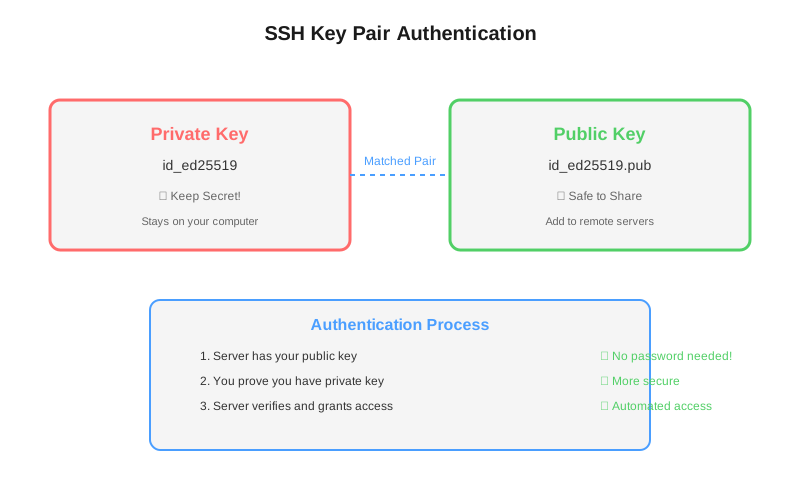
How SSH key pairs work for authentication
Generating Your First SSH Key
Let's walk through generating an SSH key pair. The process is straightforward and works on macOS, Linux, and Windows (with Git Bash or WSL).
Step 1: Open Your Terminal
Open your terminal application (Terminal on macOS/Linux, or Git Bash/PowerShell on Windows).
Step 2: Generate the SSH Key
Use the ssh-keygen command to generate a new SSH key pair. Here's the basic command:
ssh-keygen -t ed25519 -C "your_email@example.com"Command breakdown:
-t ed25519: Specifies the key type (Ed25519 is modern and recommended)-C "your_email@example.com": Adds a comment (usually your email) to identify the key
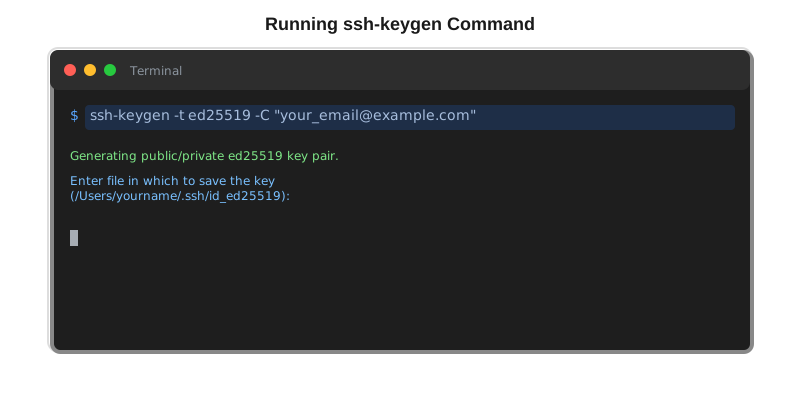
Example of running ssh-keygen command
Step 3: Choose a Location (Optional)
When prompted, you can press Enter to accept the default location (~/.ssh/id_ed25519) or specify a custom path. For most users, the default is perfect.
Enter file in which to save the key (/Users/yourname/.ssh/id_ed25519): [Press Enter]Step 4: Set a Passphrase (Recommended)
You'll be asked to enter a passphrase. This adds an extra layer of security:
- If someone gains access to your private key file, they still need the passphrase
- You can press Enter twice to skip, but using a passphrase is more secure
- You can use a password manager to store the passphrase
Enter passphrase (empty for no passphrase): [Type your passphrase]
Enter same passphrase again: [Type it again]
Step 5: Verify Your Keys
After generation, you'll see output confirming your keys were created. You can verify by listing the files in your ~/.ssh directory:
ls -la ~/.sshYou should see two files:
id_ed25519- Your private key (keep this secret!)id_ed25519.pub- Your public key (this is safe to share)
Step 6: View Your Public Key
To view your public key (which you'll need to add to servers), use:
cat ~/.ssh/id_ed25519.pubThis will display something like:
ssh-ed25519 AAAAC3NzaC1lZDI1NTE5AAAAIGx... your_email@example.comYou can copy this entire line - this is what you'll add to your remote servers or services like GitHub, GitLab, etc. In Part 2, we'll show you exactly how to add this key to GitHub and Ubuntu servers.
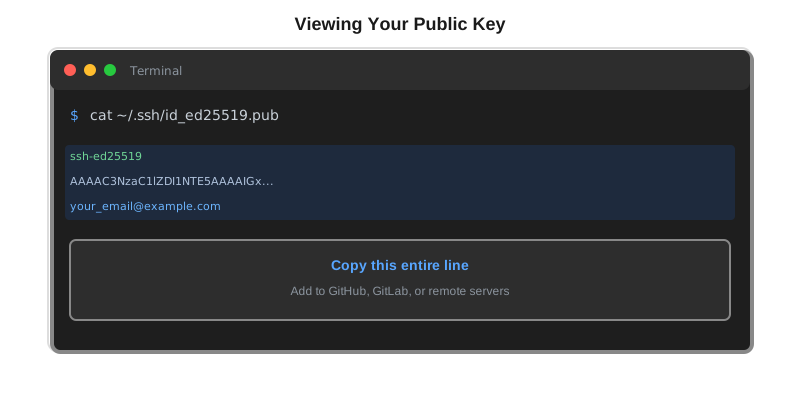
Your public key is safe to share and add to remote servers
Alternative: RSA Keys (Legacy)
If you need to use RSA keys (for older systems that don't support Ed25519), you can generate them with:
ssh-keygen -t rsa -b 4096 -C "your_email@example.com"However, Ed25519 is preferred for new keys as it's more secure and efficient.
What's Next?
Now that you've generated your SSH key pair, you're ready to use it! In Part 2 of this series, we'll cover:
- Adding your public key to GitHub for secure Git operations
- Using SSH URLs to clone, push, and pull repositories
- Adding your SSH key to Ubuntu servers using
ssh-copy-id - Connecting to servers without passwords
- Testing and verifying your SSH connections
Ready to put your keys to work? Head over to Part 2: Using SSH Keys with GitHub and Ubuntu Servers!